Shelf Menus – Right-click Popups
A right-click within an empty location in the Shelf brings up the popup menu on the right. If you select “Import”, you can then browse to find a text file (with the extension “.hoku”) that contains a job. That job is installed within this folder on the Shelf. The items on the Shelf are displayed in “Chronological” or “Alphabetical” order. If you select “New Folder”, a new folder is made on this shelf, with a name chosen by you. Shown on the screen are two folders with the names “user” and “ms_225”.
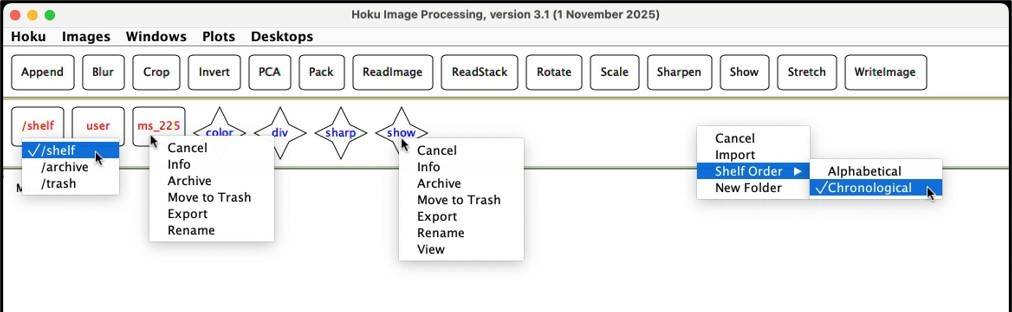
Left-clicking in a folder changes the Shelf to that folder. The right-click menu options are the same options as for an individual job, except that they apply to the whole folder and every folder and job within that folder. A left-click in the far left folder lets you change to two other Shelves, “Archive” and “Trash”.
If you right-click within a job on the Shelf, you are given the option to get Info, Archive, Move to Trash, Export, Rename, or View. Info will give you the date and time that this job or folder was last modified. If you archive or trash a job, it is moved to those Shelves. Any job or folder can be restored from Archive or Trash. If you “Export” it, Hoku stores a text file in a directory of your choice, with the module name ,ending in “.hoku”. Rename lets you change the name of the job on the Shelf. View shows you the job’s command statement.